
Invite-Link Shared Room Canvas for Classrooms & Sister-School Collaborations
A collaborative studio model connecting a single classroom—or partner classrooms across cities—on one private, password-protected live canvas via invite link.
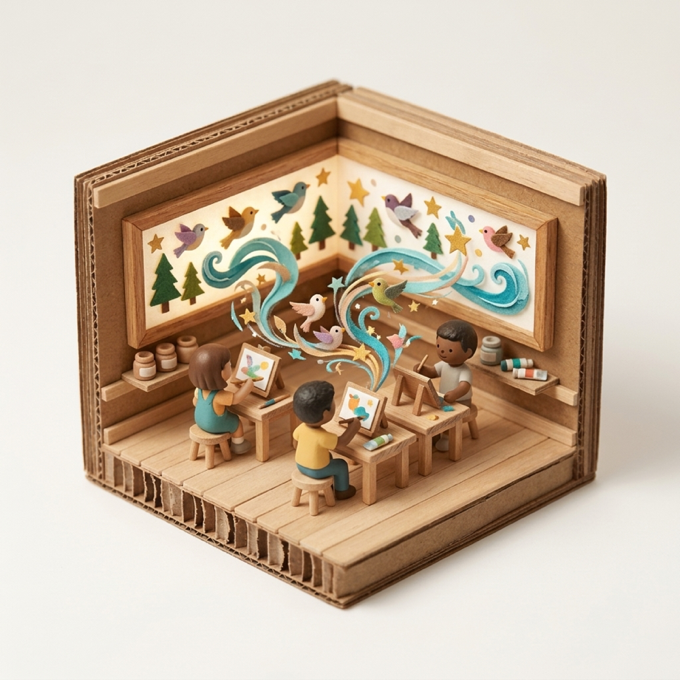
“Our classroom paints the western shore while our partner school paints the eastern hills—let’s meet in the middle with a bridge made from everyone’s custom patterns!”
Scenario & Workshop Overview
Built for classroom teamwork, eTwinning exchanges, and sister-school art projects, teachers launch a dedicated room with custom player caps (2–50) and stroke targets (up to 1,000 strokes). Students join via the invite link, coordinate zones on the live Canvas Minimap, contribute custom brushes to the room, and co-paint a shared story world.
Step-by-Step Story & Workshop Flow
1. Schedule the Room & Share with Partner Class (5 min)
The lead teacher creates a scheduled room with a password and shares the invite URL with students and the partner classroom teacher.
2. Upload Local Nature & Culture Brushes to the Room (10 min)
Students from both schools draw symbols of their local flora, landmarks, or stories and add them to the shared room brush list.
3. Simultaneous Cross-Classroom Painting (20 min)
When the room goes live, students see each other’s real-time cursors and paint together using hand tracking or touch.
4. Collective Review & High-Res Export (10 min)
Teachers pause the room for a joint reflection call and save the finished collaborative canvas for both schools’ galleries.
Pedagogical & Creative Outcomes
- Building cross-classroom empathy, communication, and synchronous teamwork across schools
- Ensuring school-safe digital privacy with closed invite-only access and teacher moderation
- Practicing spatial negotiation and shared responsibility toward a collective stroke goal
MONNOM Features Used
Equipment & Materials
- • Internet-connected classroom tablets, Chromebooks/laptops, or smartboards (playmonnom.com/play)
Frequently Asked Questions
Can invited participants join a scheduled room in advance and see it in their Lobby?
Yes. Once a student clicks “Join” on the invite card, the scheduled room appears in their Lobby and Profile → My Rooms with a live countdown, and they can leave anytime.
